
Securly Home
Securly Inc.Parenting
4.4225.00 Reviews
- Version
- 5.7.1
- Installs
- 100.00K
- Age Rating
- Everyone
Screenshots

Our Review of Securly Home
 Analysis by Appyee
Keeping track of a child’s online activity can be difficult when the devices, accounts, and school systems involved do not all behave in the same way. I found Securly Home most useful as a parent-facing way to stay informed, rather than as a complete replacement for conversation, household rules, or the controls already built into a phone or tablet. Its purpose is straightforward: it gives parents a clearer view of what their children are doing online.
That simple goal matters, but the experience depends heavily on setup. When everything is connected correctly, the app can make online supervision feel less scattered. When an account, device, or connection is not behaving as expected, it can be easy to assume the app itself has failed. My review focuses on that practical side: where people tend to get stuck, what I would check first, and when another tool may be a better fit.
What Securly Home is designed to do for parents
Securly Home is a parenting app from Securly Inc. I see it as a visibility tool for families who want more context around a child’s online activity. That distinction is important. An app that keeps you informed is not automatically the same as one that offers every possible blocking, scheduling, location, or device-management feature. Parents should begin with the specific concern they are trying to solve instead of assuming one application will cover every part of digital parenting.
In everyday use, the value comes from having a single place to check the information made available through the connected setup. That can be more practical than repeatedly checking individual devices or relying on a child to explain what happened online. It also creates an opportunity for calmer conversations, because a parent can start with a question about a pattern rather than making a vague accusation.
I would recommend approaching the app as part of a wider routine. Before installing it, decide what you actually want to understand: general online activity, a change in behavior, or whether a particular device is being used as expected. A clear goal makes the app easier to judge and prevents unnecessary monitoring that may create tension without helping the family.
Why setup is often the first source of confusion
The most common frustration with a family monitoring app is not necessarily the screen inside the app. It is the chain of relationships behind that screen: the parent account, the child’s account, the relevant device, and the network or service that supplies the activity information. If one part is connected to the wrong person or device, the result may look incomplete even though the application is operating normally.
I would therefore avoid rushing through the first setup. Use the same parent account consistently, identify each child clearly, and check that the device you expect to see is the one associated with that child. A family with several phones, tablets, or school devices should be especially careful here. Similar device names can make it surprisingly easy to inspect the wrong profile and conclude that information is missing.
Another useful habit is to test the arrangement before depending on it. After setup, perform a small, ordinary activity on the relevant child device and then check whether the expected information appears. This is not a scientific test of every situation, but it can reveal a basic account or connection mistake while you still remember what you changed.
Checks I would make before blaming the app
When the app seems empty, delayed, or connected to the wrong child, I would work through a short sequence rather than repeatedly tapping refresh. First, I would confirm that the parent is signed into the intended account. Next, I would inspect the child and device relationship, making sure the profile was not accidentally duplicated or assigned incorrectly.
Then I would check the practical basics: the parent phone has a working internet connection, the child device has recently been online, and the application is running the current version available for that installation. The current version is 5.7.1, and the app requires at least iOS 9, so compatibility is worth checking before spending time on more complicated troubleshooting. A device that is very old, restricted, or rarely connected may not provide a useful live picture.
I also recommend closing and reopening the app after correcting an account or device detail. If that does not help, signing out and back in can be a sensible recovery step, provided you know the account credentials. I would not immediately delete the app, because reinstalling can add another layer of account confusion without fixing the original association.
The most useful setup check is to verify the relationship between parent, child, and device before judging the information itself. This sounds obvious, but it is the step most likely to explain a confusing result in a multi-device household.
How I would recover a confusing workflow
Suppose a parent opens the app and sees information that appears incomplete. My first response would be to note exactly what is wrong. Is the child missing entirely? Is the wrong device shown? Is the information older than expected? Or does the app open normally but fail to reflect a recent activity? These are different problems, and treating them as one makes troubleshooting slower.
If the wrong child or device appears, I would return to the account and profile arrangement rather than repeatedly refreshing. If the profile is correct but recent information is not visible, I would check whether the child device has been online and whether the parent phone can reach the internet. If the app behaves strangely after an update or account change, a full restart of the app and phone is a reasonable next step.
For families, it helps to keep a simple record of which child uses which device. This is particularly useful when children share tablets or when a school-issued device is used at home. A short written note with the device name and intended user can prevent accidental reassignment and makes it easier to explain the setup to another parent or guardian.
I would also avoid making an important family decision from one unexpected screen. Activity information can be misunderstood when viewed without context. A single unfamiliar item might reflect shared equipment, a changing account, or a timing issue rather than deliberate concealment. The app is more useful when it prompts a conversation and a second check, not when it becomes the only evidence in a disagreement.
When the problem may be outside Securly Home
Not every missing or surprising result is caused by the app. The child may be using a different device, a different account, or a connection that is not included in the arrangement the parent set up. A phone may also be offline, restricted, or unavailable for technical reasons. In those cases, the parent-facing app cannot provide a complete picture of activity it was never connected to observe.
This is where expectations matter. Securly Home can be useful for information that flows through its supported setup, but it should not be treated as a universal window into every screen a child might access. If your main concern is a child’s physical location, app purchase approval, screen-time scheduling, or detailed control over a specific operating system, you may find the device maker’s family tools more appropriate. Those tools are often closer to the operating system and can be better suited to direct restrictions.
On the other hand, built-in controls may not give a parent the same kind of family-oriented visibility they are looking for. That is the trade-off. Securly Home makes more sense when the priority is staying informed through the connected family arrangement. A platform-native solution may be preferable when the priority is enforcing a precise rule on one particular device.
Using the app without turning monitoring into conflict
The strongest use case I see is a household where parents want a regular, low-drama way to understand online activity. For example, imagine a child who has started staying awake later than usual and seems tired before school. Instead of checking every device in a hurried search, a parent can use the available information as one part of a broader conversation about bedtime, schoolwork, and what the child is actually doing online.
That approach also makes the app more sustainable. Children are more likely to cooperate when they understand what is being monitored and why. I would explain the household rule in plain language, agree on what the parent will check, and leave room for the child to raise mistakes or misunderstandings. Securly Home should support that agreement, not replace it.
A less obvious benefit is that the app can help parents notice their own assumptions. If a parent expects one device to explain everything, the information may seem alarming or incomplete. Mapping the family’s actual device habits first can reveal that a child moves between a school device, a shared tablet, and a personal phone. The practical lesson is that better organization may improve the usefulness of the app more than constant checking.
Another useful workflow is to check at agreed times instead of watching continuously. A parent might review the available information during a weekly family discussion, then decide whether a rule needs adjusting. This reduces the temptation to react to every unfamiliar detail and keeps monitoring connected to a clear parenting purpose.
Who will appreciate it most
I think Securly Home suits parents who want a dedicated place to stay informed and who are willing to spend time making the account and device arrangement accurate. It is also a reasonable choice for families already using a Securly-connected environment and looking for the parent side of that experience.
The app is free, which lowers the barrier to trying it. It is rated for Everyone, and its listing shows an average rating of 4.4 from around 1.4 thousand ratings, with over 100 thousand installs. Those figures suggest that it has found an audience, but they should not replace your own assessment of whether its approach matches your family’s needs.
I would be more cautious if you want an all-in-one parental-control suite with a long list of direct device restrictions. I would also hesitate to recommend it as the only solution for parents who need immediate, highly specific control over a child’s personal phone. In that situation, the operating system’s own family settings or a specialist control tool may be a better primary choice, while Securly Home could still serve as a complementary source of information.
Questions I would settle before relying on it
One practical question is whether the app works for your device arrangement. The minimum operating-system requirement is iOS 9, so I would check the parent phone before beginning. I would also consider whether the child uses one consistently connected device or several devices with different accounts. The more complicated the household setup, the more important the initial mapping becomes.
Another question is what to do if the information looks stale. I would first confirm the child device has been online, then check the parent connection and account, and finally restart the app. If the issue continues, I would avoid repeatedly changing profiles because that can make the original problem harder to identify. Documenting what you observed and what you changed is more useful than guessing.
Parents may also wonder whether the app removes the need for built-in controls. In my view, it does not. Use the platform controls when you need direct limits or permissions, and use Securly Home when its connected information helps you understand online activity. The two approaches solve related but different problems.
Finally, ask whether your family can use monitoring constructively. If every notification or unfamiliar activity leads to an immediate confrontation, no monitoring app will create trust. The better result comes from combining the information with clear expectations, privacy boundaries, and a chance for the child to explain what happened.
My practical verdict
Securly Home is a focused parenting app that can make online supervision more manageable when the family setup is correct. I like its potential as a central place for parents to stay informed, especially in households where checking several devices manually would be inconvenient. Its free price also makes it easy to evaluate without committing money first.
Its main weakness is the same thing that determines its usefulness: the app depends on a correctly organized connection between accounts, children, devices, and online activity. When that arrangement is unclear, the experience can feel unreliable even if the underlying problem is elsewhere. The app also should not be mistaken for a universal replacement for system-level parental controls.
Released on March 9, 2018, and developed by Securly Inc., it remains a relevant option for parents who value visibility and are prepared to verify the setup carefully. I would recommend trying it for a specific family goal, testing the arrangement with an ordinary device activity, and agreeing on how the information will be used. If you want informed conversations rather than constant guesswork, Securly Home is worth considering; if you need comprehensive direct restrictions, pair it with or choose a more specialized control system.
In my experience, the app works best when treated as one dependable part of a parenting routine, not as a magic answer to every online-safety concern. That balanced expectation is what turns it from another monitoring screen into something genuinely useful at home.
Verdict
Strengths of Securly Home
- Simple dashboard for viewing and managing children’s online activity
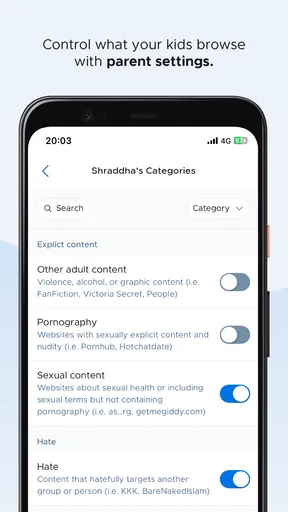
- Supports custom web filters and category-based content restrictions
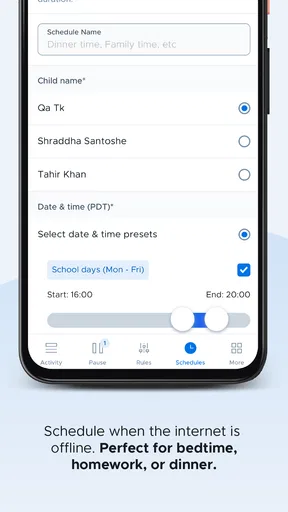
- Provides screen-time controls to encourage healthier device habits
- Alerts can help parents spot potentially risky browsing behavior
- Designed to work across multiple connected devices and platforms
Limitations of Securly Home
- Some features may require a Securly subscription or school-provided account
- Children may find monitoring intrusive, especially with detailed activity reports
- Filtering accuracy can vary between browsers, apps, and encrypted services
- Setup may require configuration on every device used by the child
- Limited usefulness for families without compatible Securly services
Similar Picks in This Category
View All
Family Space
Motorola Mobility LLC.3.9

شرطة الأطفال - مكالمة وهمية
Oub Apps4.1

Findmykids: Parental Control
LETEM LTD4.6

Pregnancy + | Tracker App
Philips Electronics UK Limited4.8

Policía de niños - para padres
Kids police4.7

Pregnancy App
Amila4.9
Frequently Asked Questions
What is Securly Home and who is it designed for?
Securly Home is a parental-control and student-safety app designed to help families monitor and manage a child’s school-issued device or online activity, depending on the school’s Securly setup. Parents may be able to view activity reports, receive alerts, manage internet access, and apply schedules or restrictions. Available features can differ significantly between schools, districts, subscriptions, and device types.
Does Securly Home monitor everything my child does on a device?
Not necessarily. Securly Home generally works with the school’s filtering and monitoring services, so visibility depends on how the district has configured its account and which device or browser the student uses. It may report websites, searches, or safety-related events, but it should not be assumed to provide complete access to private messages, every application, or activity on personal devices.
Can parents block websites, pause internet access, or set schedules?
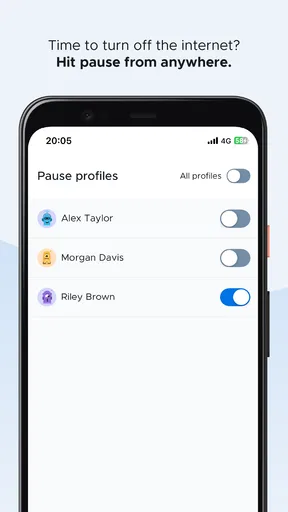
In supported configurations, Securly Home may allow parents to apply controls such as pausing internet access, limiting browsing during certain times, or managing access to selected categories and websites. These controls are not universal, however. Options can depend on the school’s policies, the child’s device, the installed filtering technology, and whether the device is connected to a monitored network.
Is Securly Home free to download and use?
Downloading the Securly Home app may be free, but access to its features usually depends on an invitation, account, or service provided through a participating school or district. Parents may need to sign in using credentials supplied by the school, and some capabilities may be controlled by an institutional plan. Installing the app alone does not guarantee that monitoring or parental controls will be available.
What privacy and account information should parents consider before installing it?
Before using Securly Home, parents should review the app’s privacy policy, permissions, and the school or district’s technology-use policy. The service may process account details, device information, browsing-related data, alerts, and usage reports to provide safety and filtering features. Families should also confirm who can view reports, how long information is retained, and how to contact the school about inaccurate alerts or privacy concerns.
